
How to Moderate a Slido Q&A Session
Slido is a useful tool for managing live Q&A sessions, allowing moderators to filter, highlight, and archive questions efficiently. This guide will walk you through the key features of moderating a Slido Q&A session.
More information is available on Slido Help Center
Video Tutorial
1. Logging into Slido
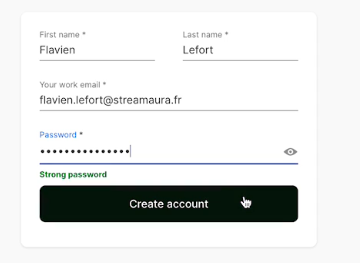
- Open the Slido link in your web browser.
- Enter your email address to sign in.
- If you already have a password for this email, enter it to log in.
- If you don’t have an account, create one by completing the registration form.
Once logged in, you will have access to the events assigned to your account.
2. Understanding the Participant Interface
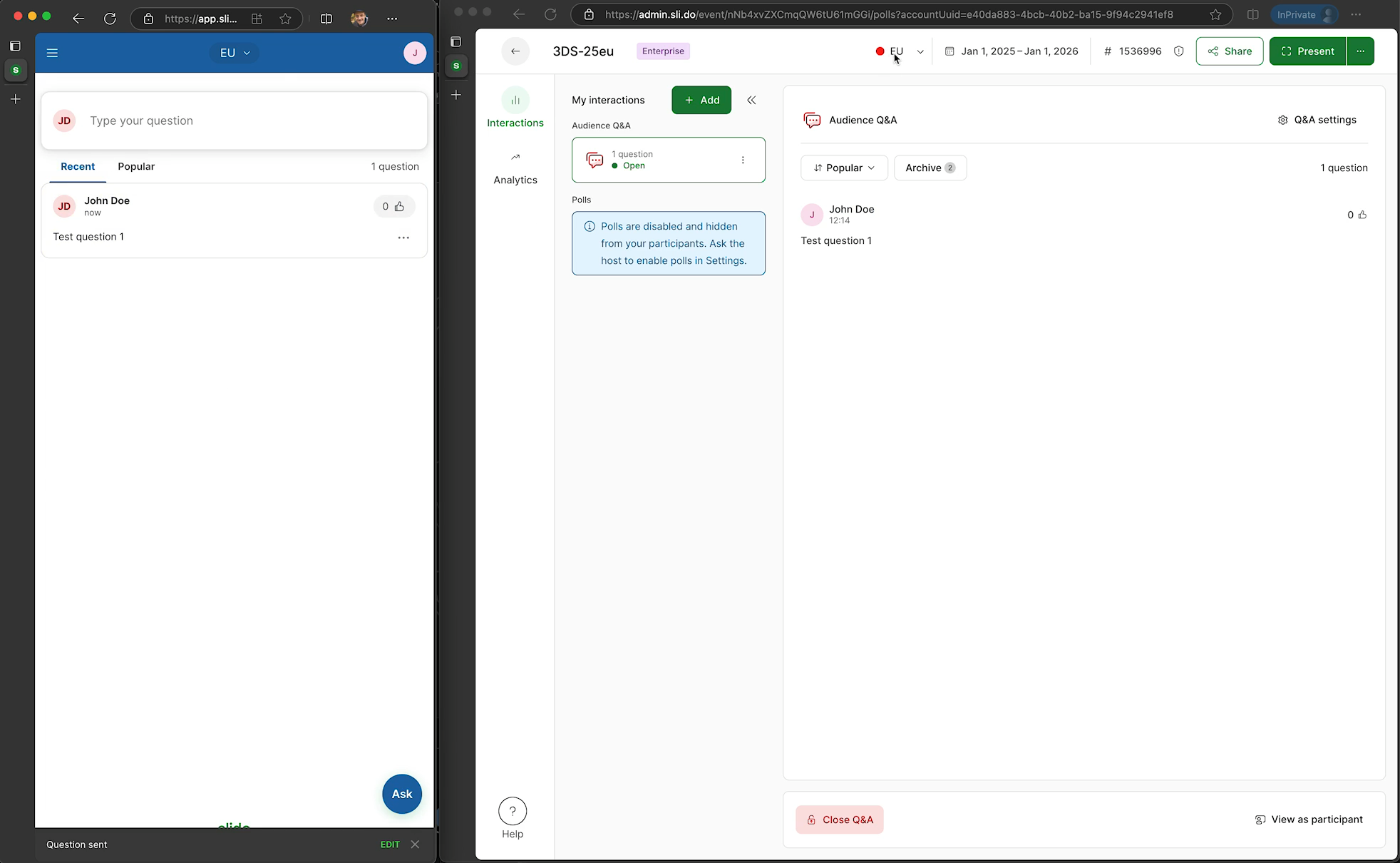
- On the left side of the screen, you will see the participant interface.
- Participants can submit questions via a smartphone or a webcast interface.
- You can open this interface in a separate browser window for easier moderation.
3. Managing Questions in Different Rooms
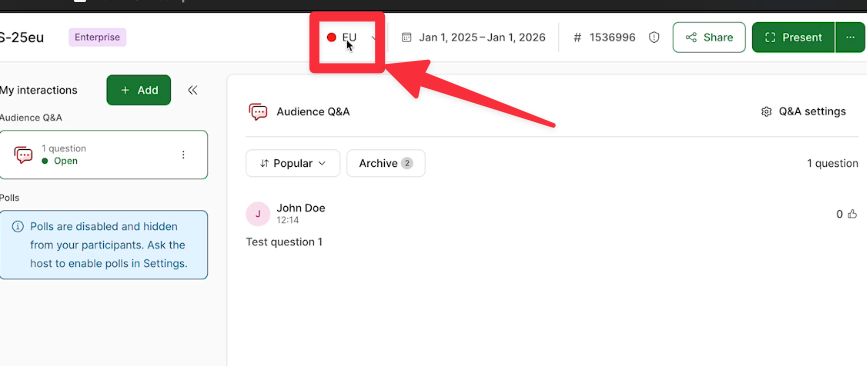
- Slido allows you to manage multiple rooms (e.g., different regions, departments, or topics).
- To view questions from a specific room, ensure you have selected the correct room.
- Questions posted in one room will not be visible in other rooms.
Example:
- If you are in the EU Room, you will only see questions from that room.
- A question from the US Room will not appear in the EU Room unless you switch rooms manually.
To switch rooms, use the room selector in the interface.
4. Replying to Questions
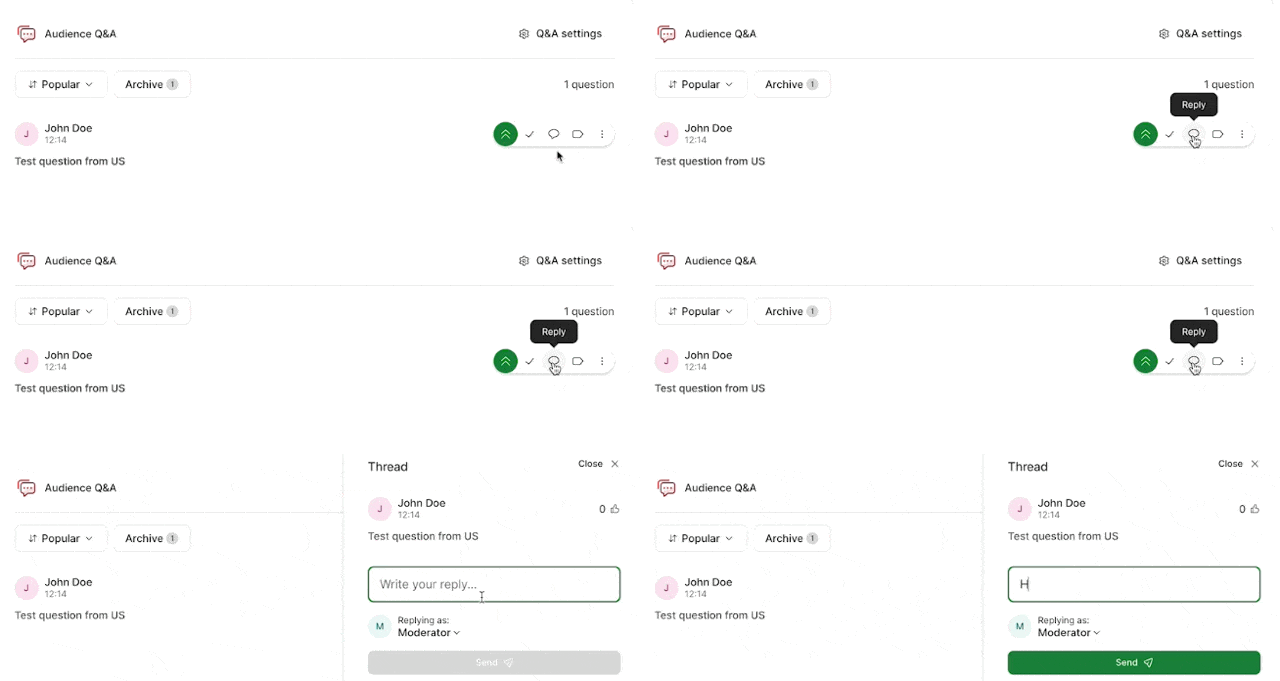
- Click the Reply button next to a question.
- Type your response as a moderator.
- You can choose to display your real name instead of "Moderator" (this can be changed in account settings).
- Once posted, your response will be visible to everyone.
5. Highlighting Questions for Moderators
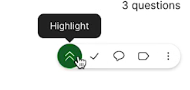
If there are many incoming questions, you can highlight certain ones for easier reference.
- Select a question and mark it as highlighted.
- This will make it stand out for all moderators.
- Note: Highlighting a question does not make it visible to participants—it is only for internal moderation.
If you no longer need the highlight, simply remove it.
6. Marking Questions as Answered
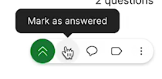
- Once a question has been answered, you can mark it as answered to remove it from the active list.
- The person who asked the question will still be able to see it along with the reply.
This helps keep the interface clean and organized for moderators.
7. Labeling Questions for Categorization
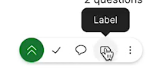
To manage questions efficiently, you can apply labels based on their topics.
- Select a question.
- Click the Label button.
- Choose or create a relevant label (e.g., "Accounting").
- You can filter questions by label to focus on specific topics.
This is useful when handling a large number of questions during an event.
8. Archiving Questions
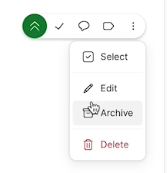
Archiving helps remove inactive questions from the main view while keeping them accessible.
- Click the Archive button next to a question.
- Archived questions will disappear from the participant interface.
- To review archived questions, go to the Archive tab.
- You can also restore archived questions if needed.
If necessary, you can bulk archive multiple questions at once.
9. Managing Multiple Questions at Once
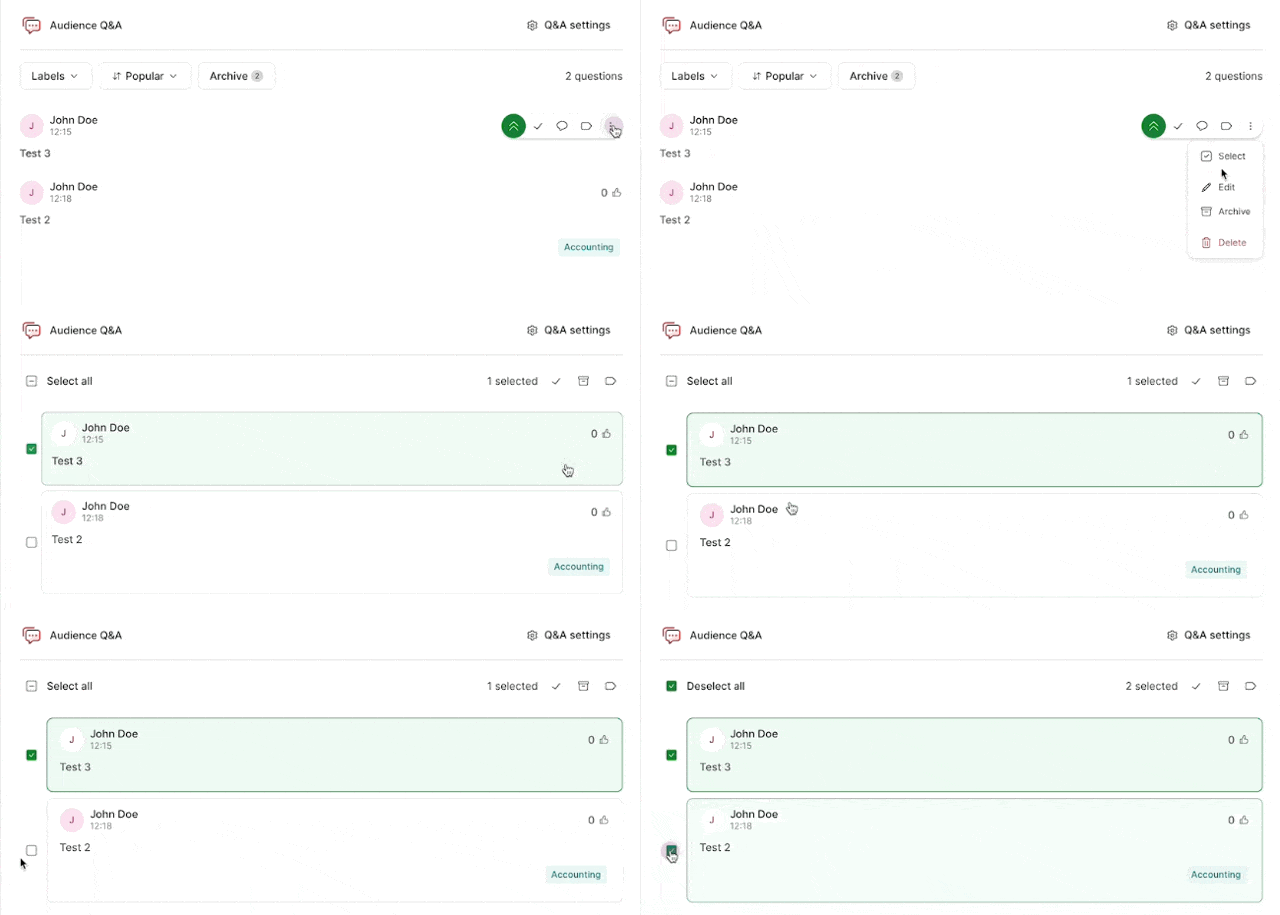
- You can select multiple questions and apply actions such as:
- Labeling
- Archiving
- Marking as answered
This is useful when dealing with a high volume of questions during an event.
10. Clearing Questions at the End of a Session
At the end of a Q&A session, you can remove all questions by clicking "Archive All Questions."
- This clears all unanswered and inactive questions from the main interface.
- Only answered questions will remain visible to the participant who asked them.
Final Tips for Effective Moderation
- Always switch to the correct room to see relevant questions.
- Use labels to categorize topics and improve organization.
- Highlight important questions for easy reference.
- Archive or mark questions as answered to keep the list clean.
By following these steps, you can efficiently manage a Slido Q&A session and provide a smooth experience for both moderators and participants.
This guide ensures that you can moderate Slido with ease and confidence! Let me know if you need further refinements. 😊